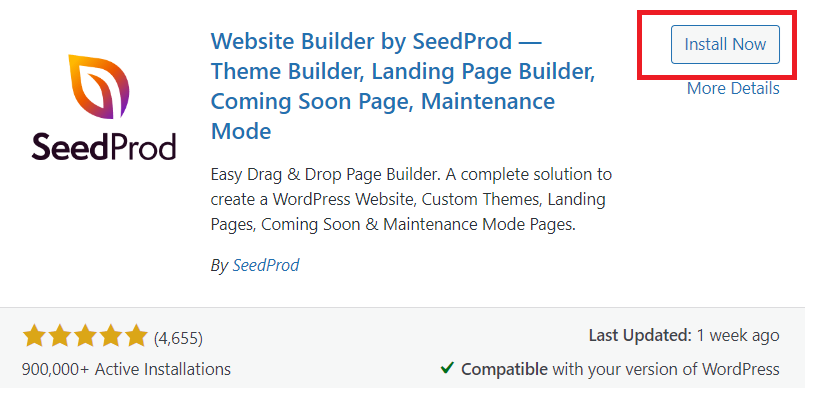
1. Install & Activate SeedProd Plugin
- Go to your WordPress dashboard.
- Navigate to Plugins > Add New.
- Search for "SeedProd".
- Install and activate the plugin.
2. Access SeedProd Settings
- Once the plugin is activated, go to SeedProd in the WordPress admin menu.
3. Create a Maintenance Mode Page
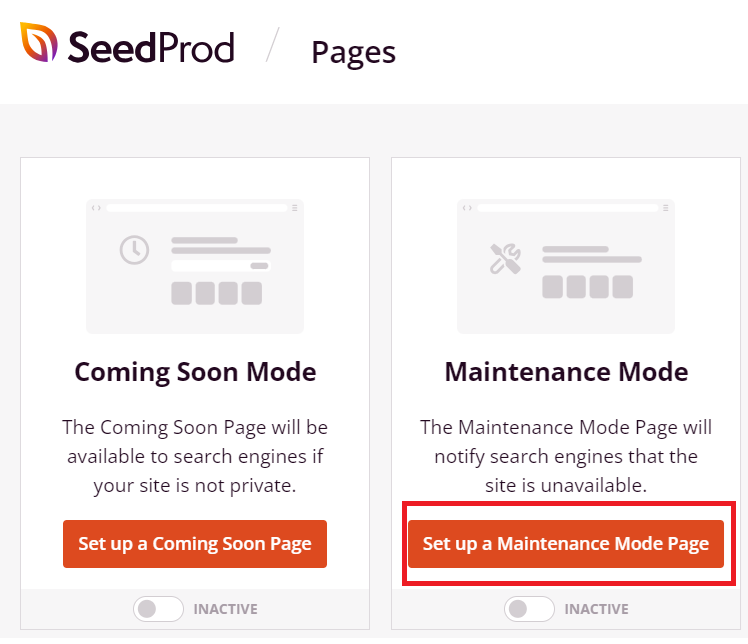
- In the SeedProd interface, you’ll see the Maintenance Mode option.
- Click on "Set Up a Maintenance Mode Page".
4. Customize the Maintenance Mode Page
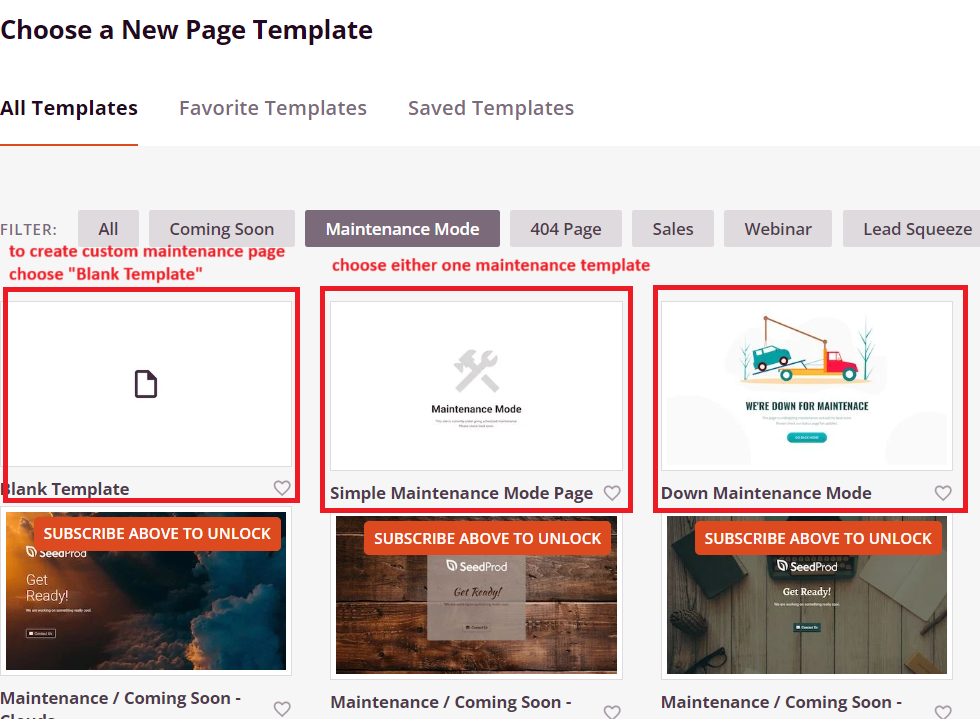
- After selecting a template, use SeedProd's drag-and-drop builder to customize the page content (text, images, forms, etc.).
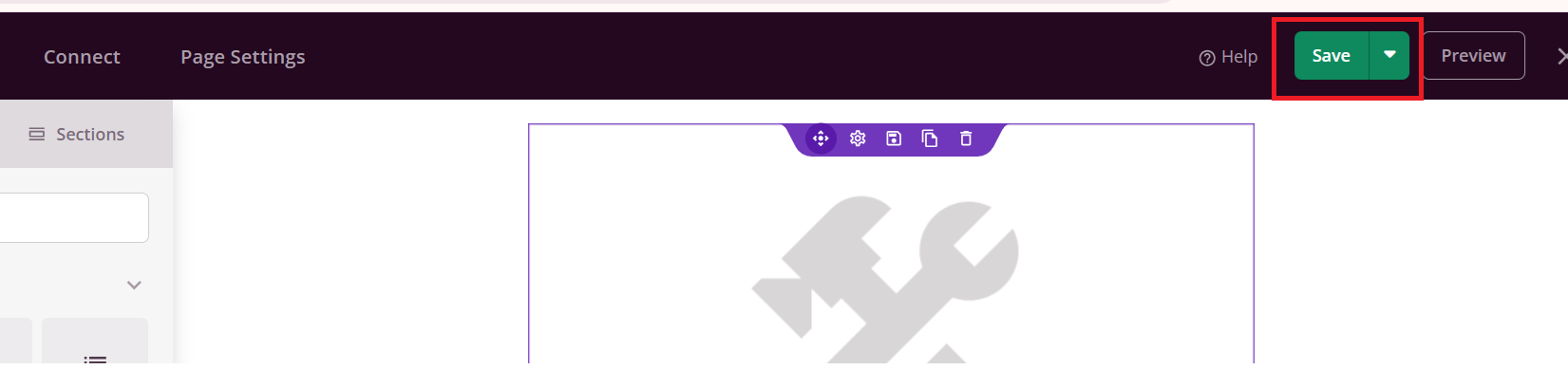
- Once you’re satisfied with your design, click Save at the top right.
5. Enable Maintenance Mode
- Return to the Pages tab in SeedProd.
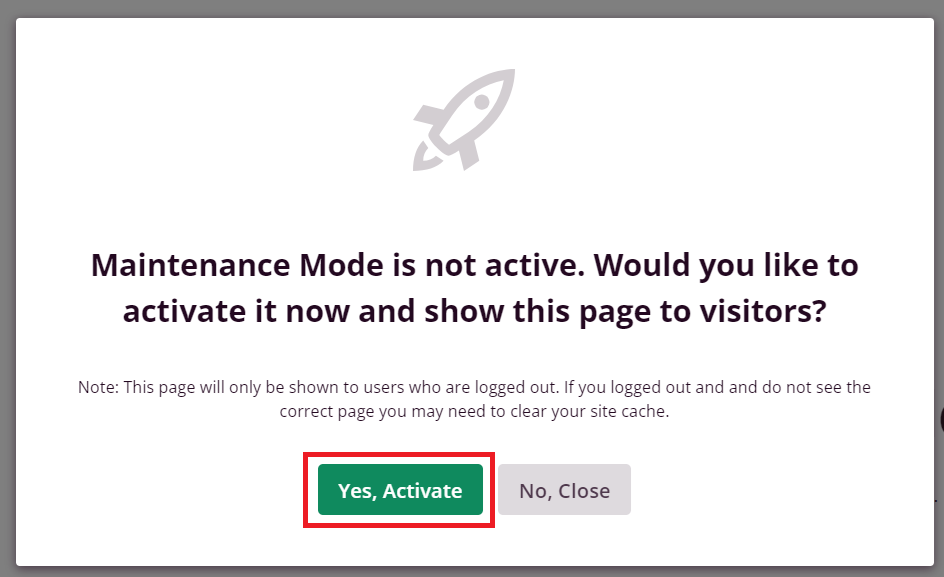
- Toggle the switch for Maintenance Mode to "Active".
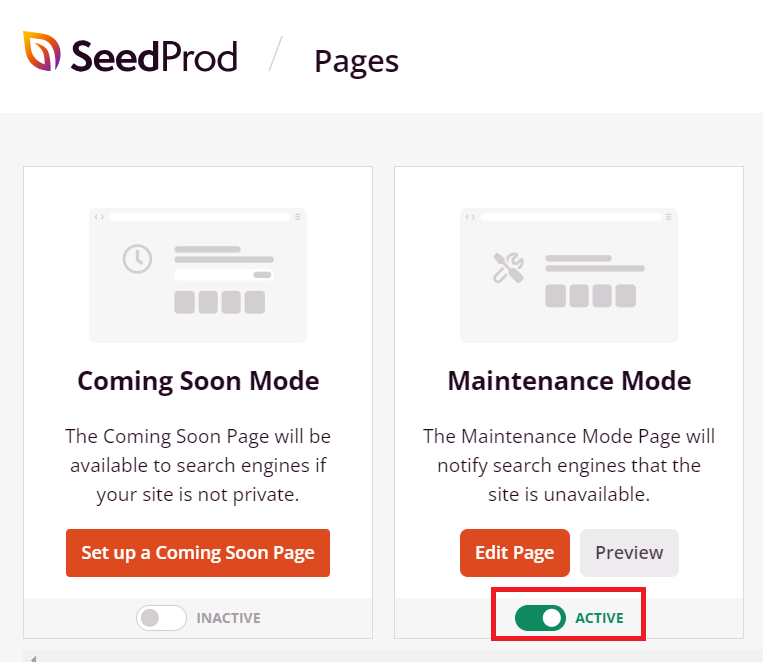
Your site will now display the maintenance mode page to visitors, while logged-in admins will still have access to the normal site.
You can also disable the maintenance mode by toggling it off when your maintenance work is complete.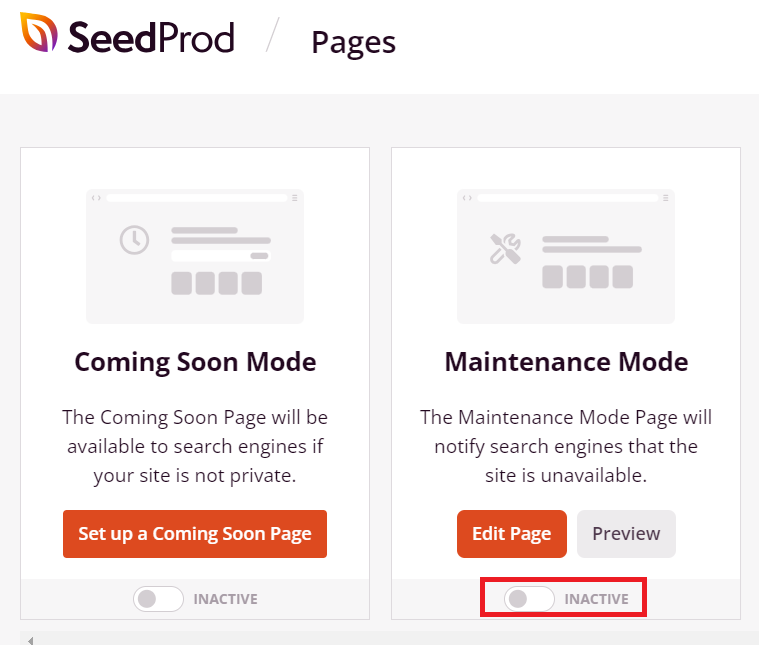
Thank you !
Was this article helpful?
That’s Great!
Thank you for your feedback
Sorry! We couldn't be helpful
Thank you for your feedback
Feedback sent
We appreciate your effort and will try to fix the article